







Start with the TV and seat you already use. Connect your PS5 or Xbox Series X|S directly to the TV, turn on Game Mode for that HDMI input, and open GTA 6. From the couch, check whether you can read the map and subtitles, see detail in a dark scene, and hear dialogue at a volume that suits the room. Those checks tell you what’s worth changing first.
Rockstar released Grand Theft Auto VI on November 19, 2026, for PS5 and Xbox Series X|S. Xbox One can play through Xbox Cloud Gaming in eligible regions. Rockstar’s launch announcement · Xbox platform and cloud play details
Get the Game Ready on Your Console
PS5, PS5 Pro, Xbox Series X, and Xbox Series S can install and run GTA 6 locally. Open your console’s storage screen and leave enough room for the current download and any update it requests. Install any available console and game updates, then launch the game once before settling in. If you bought the launch boxed edition, have the download code and the matching platform account ready. Rockstar’s edition and redemption guide
If you’re using Xbox One, check that the cloud play option is available in your market and account. Xbox requires game ownership and available cloud playtime. Set up the other parts of the room the same way, then test the stream from your usual seat. If the picture becomes soft or the controls feel delayed only while streaming, check the network connection first. A wired connection is worth trying if you can run it without crossing a walkway. Xbox’s cloud play announcement
Turn On Game Mode for the Correct TV Input
Switch the TV to the HDMI input your console uses, then enable Game Mode or the equivalent low-latency preset. Some TVs store picture settings separately by input. Check the preset while GTA 6 is on screen, particularly if a receiver or HDMI switch shares that input with other devices.
Start with the console connected directly to a compatible TV port. If the TV requires an enhanced signal setting for that port, enable it using the TV’s manual. Check whether the console now detects the features you expect. You can reconnect the receiver or switch afterward and compare the result. This gives you a baseline if a feature disappears or the picture cuts out. PlayStation’s HDMI troubleshooting guide

Check Output and HDR on PS5 or Xbox
| Console | Where to look and what to check |
|---|---|
| PS5 or PS5 Pro |
Settings → Screen and Video → Video Output Check Current Video Output Signal and Information for the Connected HDMI Device. For a compatible TV, try HDR → On When Supported, then follow Adjust HDR. |
| Xbox Series X or Series S |
Settings → General → TV & display options → 4K TV details Check what Xbox detects for this connection. If the TV supports HDR for gaming, use Calibrate HDR for games on the display options screen. |
Set the TV’s game preset and keep the lighting you normally play in while you calibrate. Then compare a dark interior and a bright outdoor scene from the couch. If a lamp is reflected in the dark parts of the picture, move it before changing the brightness settings. If HDR is still hard to read, compare the same scene in SDR and keep the setting that works better on your display. PlayStation HDR setup · Xbox display and calibration guide · Rockstar HDR troubleshooting
Find the Seat Where You Can Read the Whole Screen
Sit where you actually hold the controller, with your arms resting where they normally would. Read a line of dialogue and the interface near the corners without leaning forward. If you can see the middle clearly but keep missing prompts at the edges, try a more centered seat or move an occasional chair closer for gaming. If only the text is too small, open Pause Menu → Settings → UI and check Scaling & Readability and Subtitles & Captions before you move the whole sofa. Rockstar’s guide to UI and audio settings
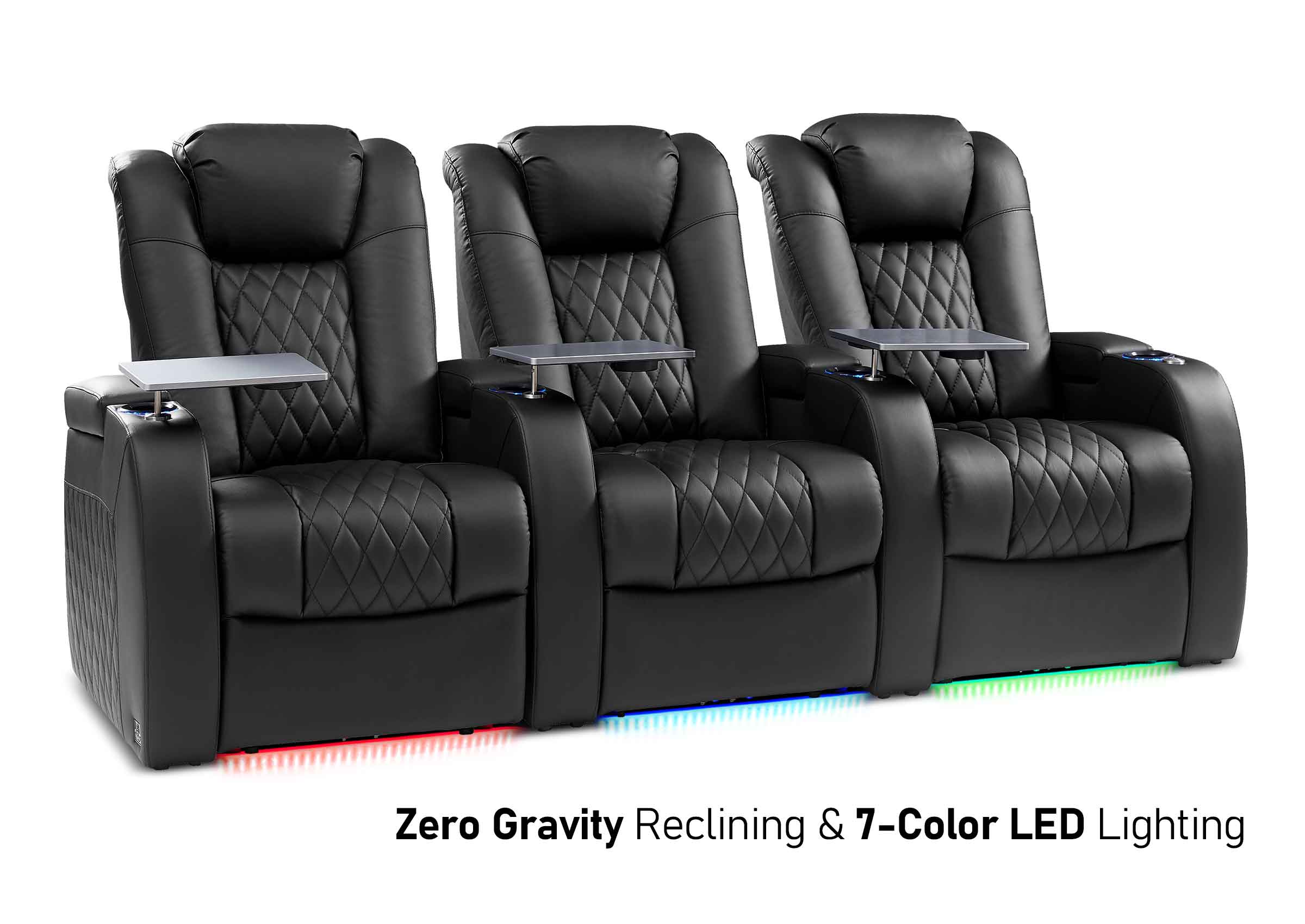
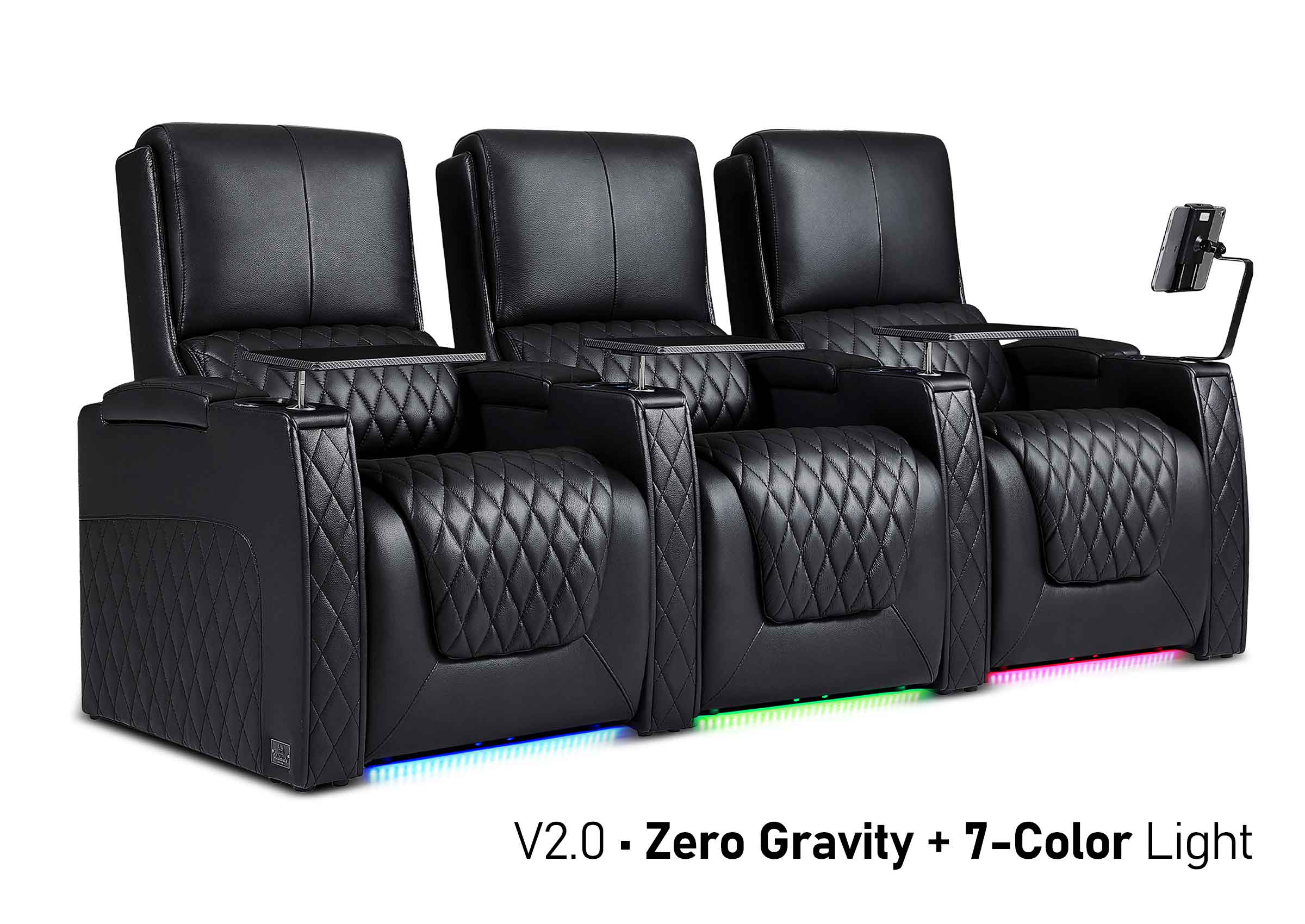
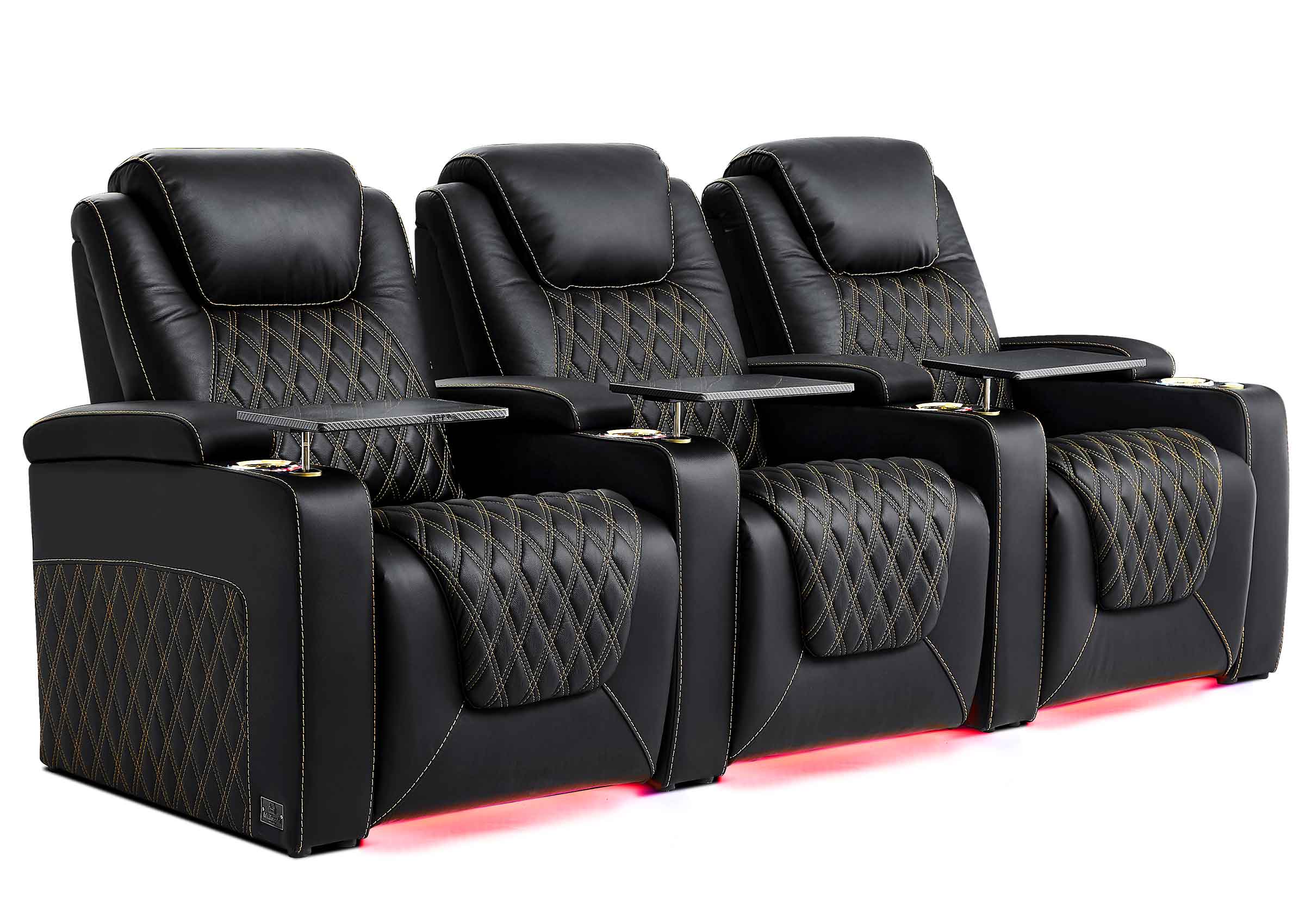
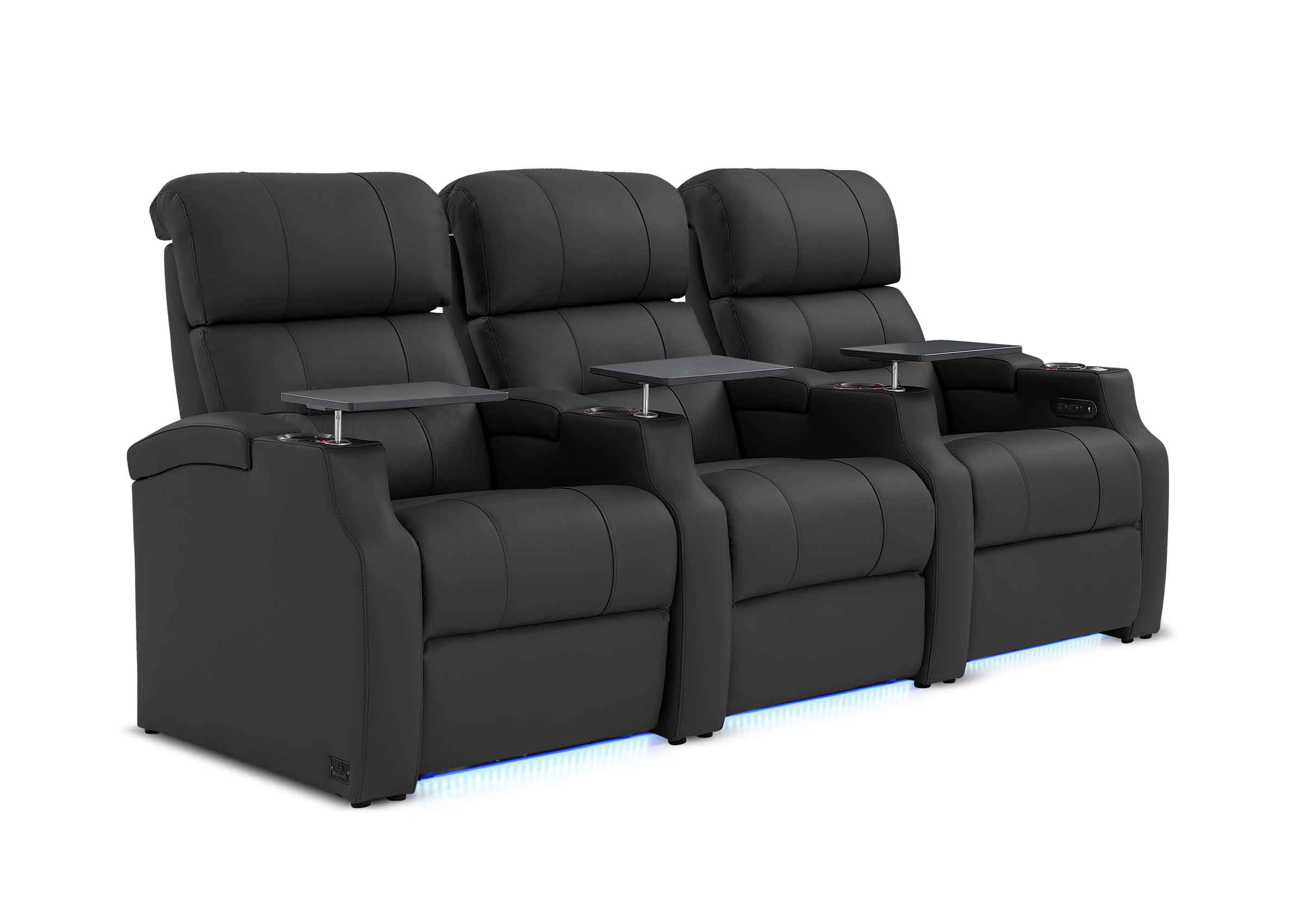
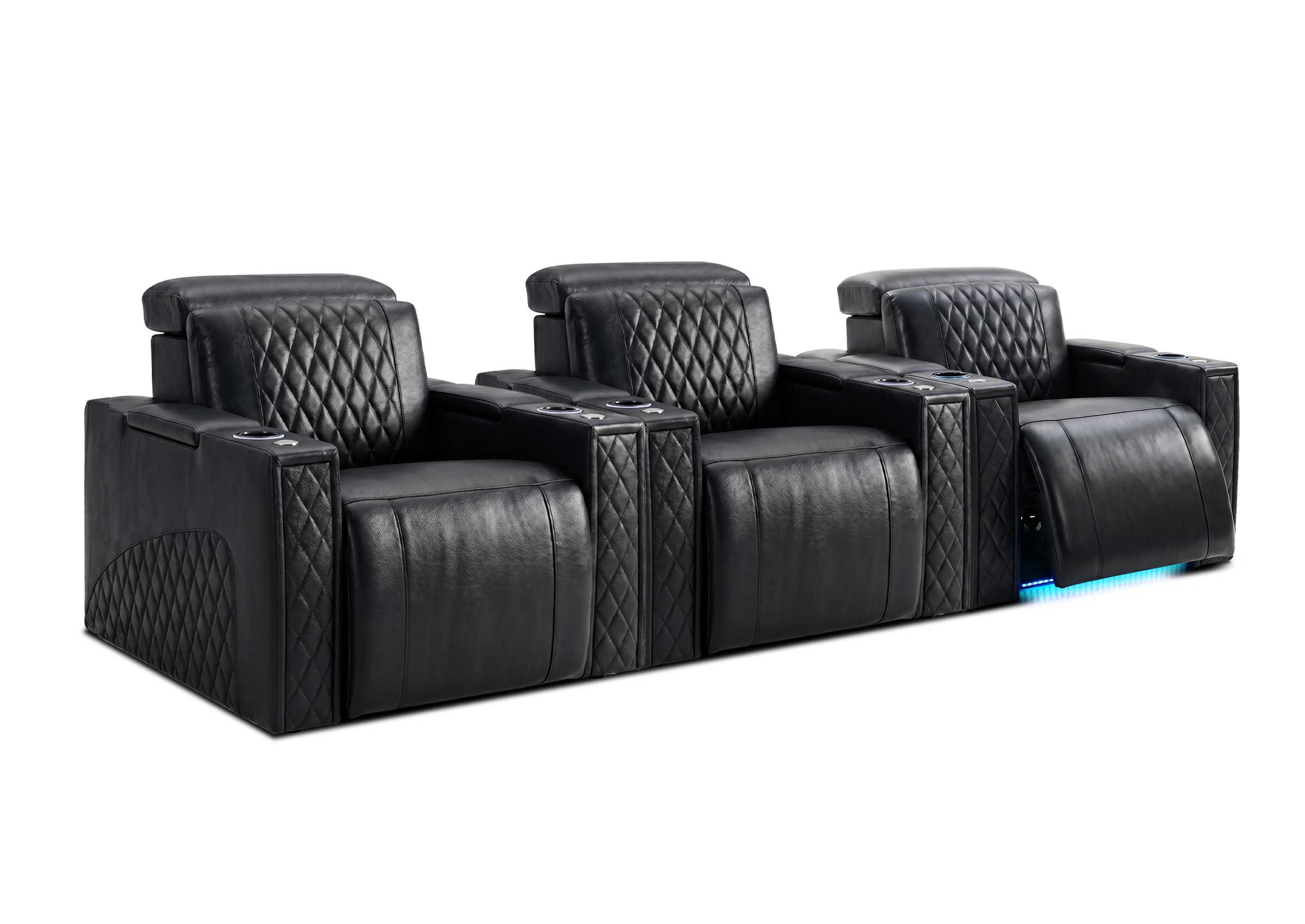
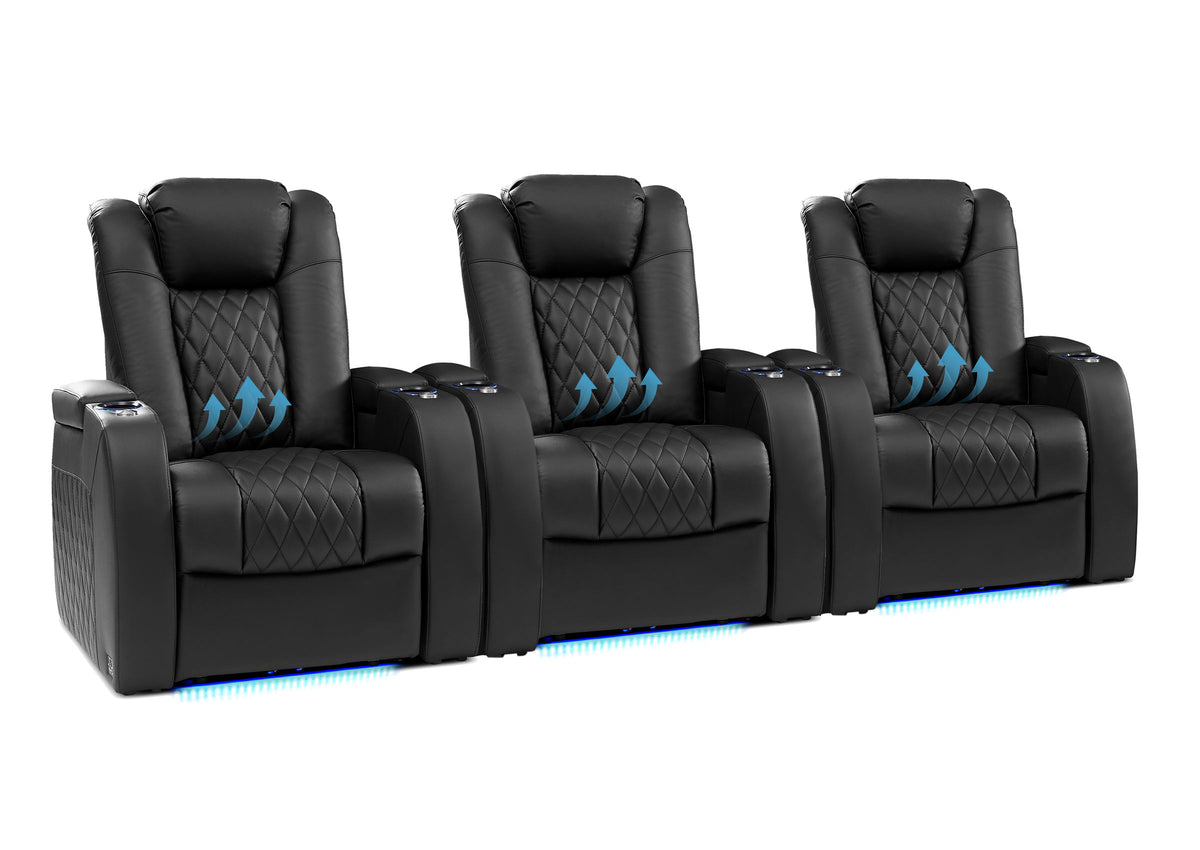
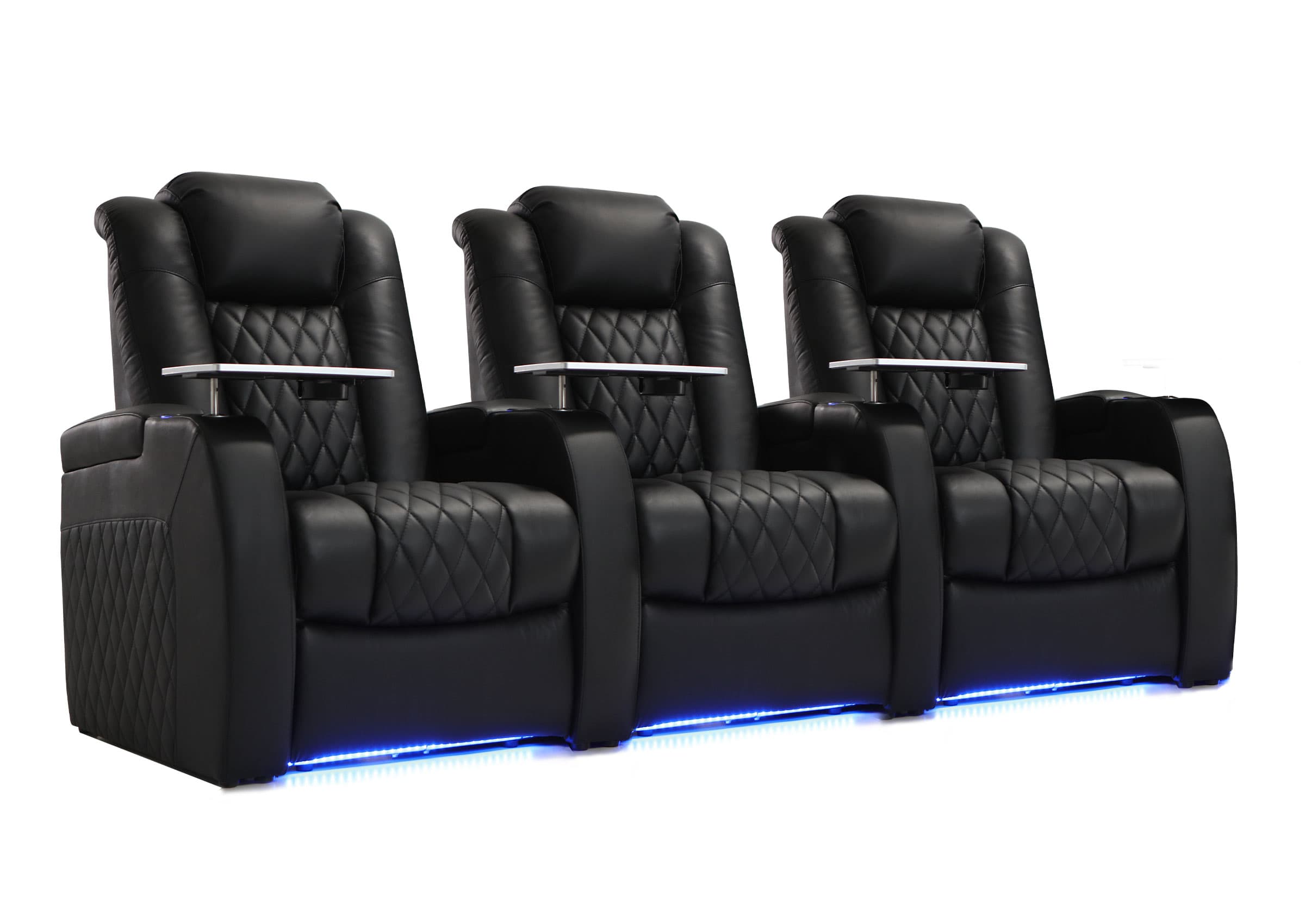
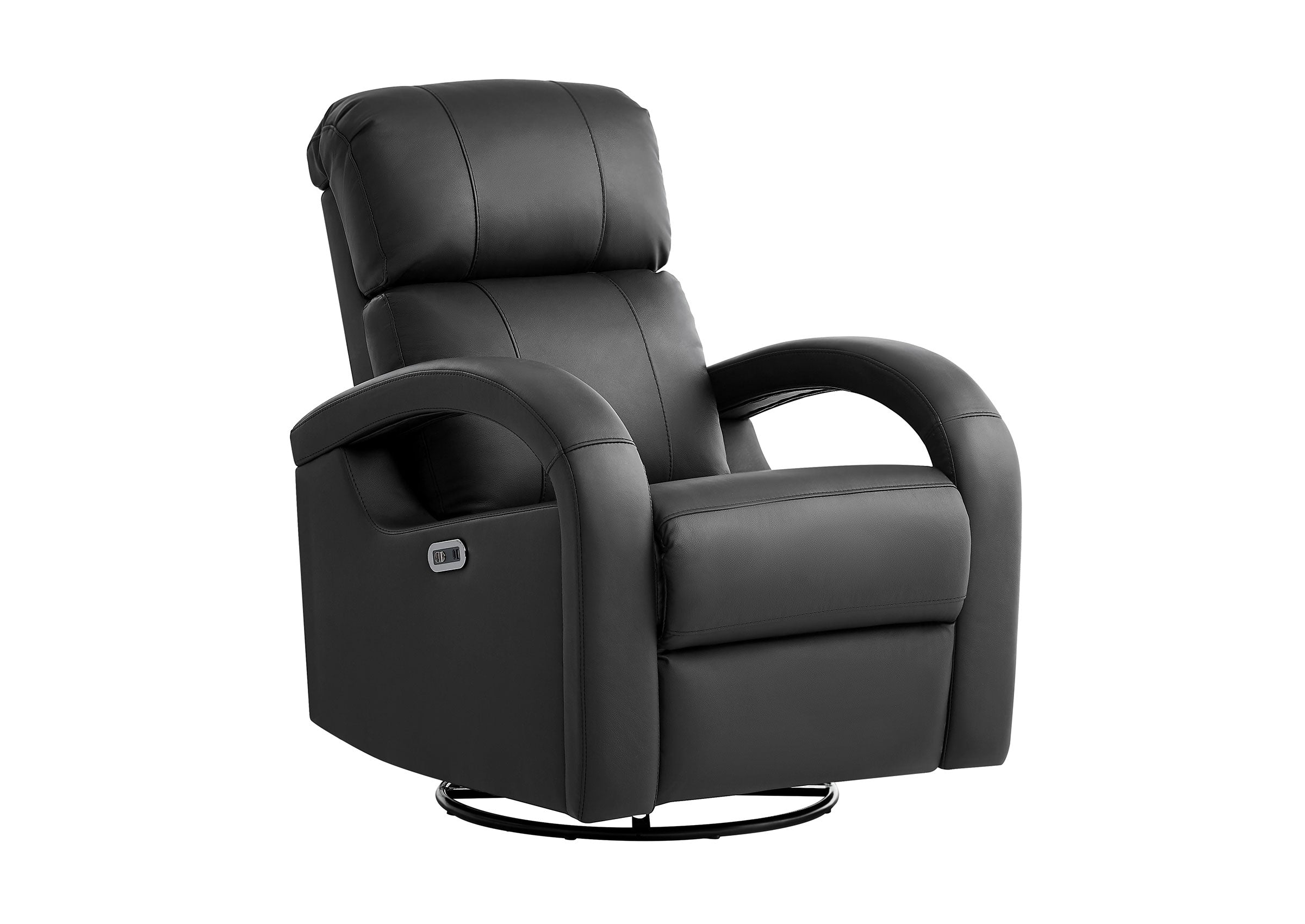
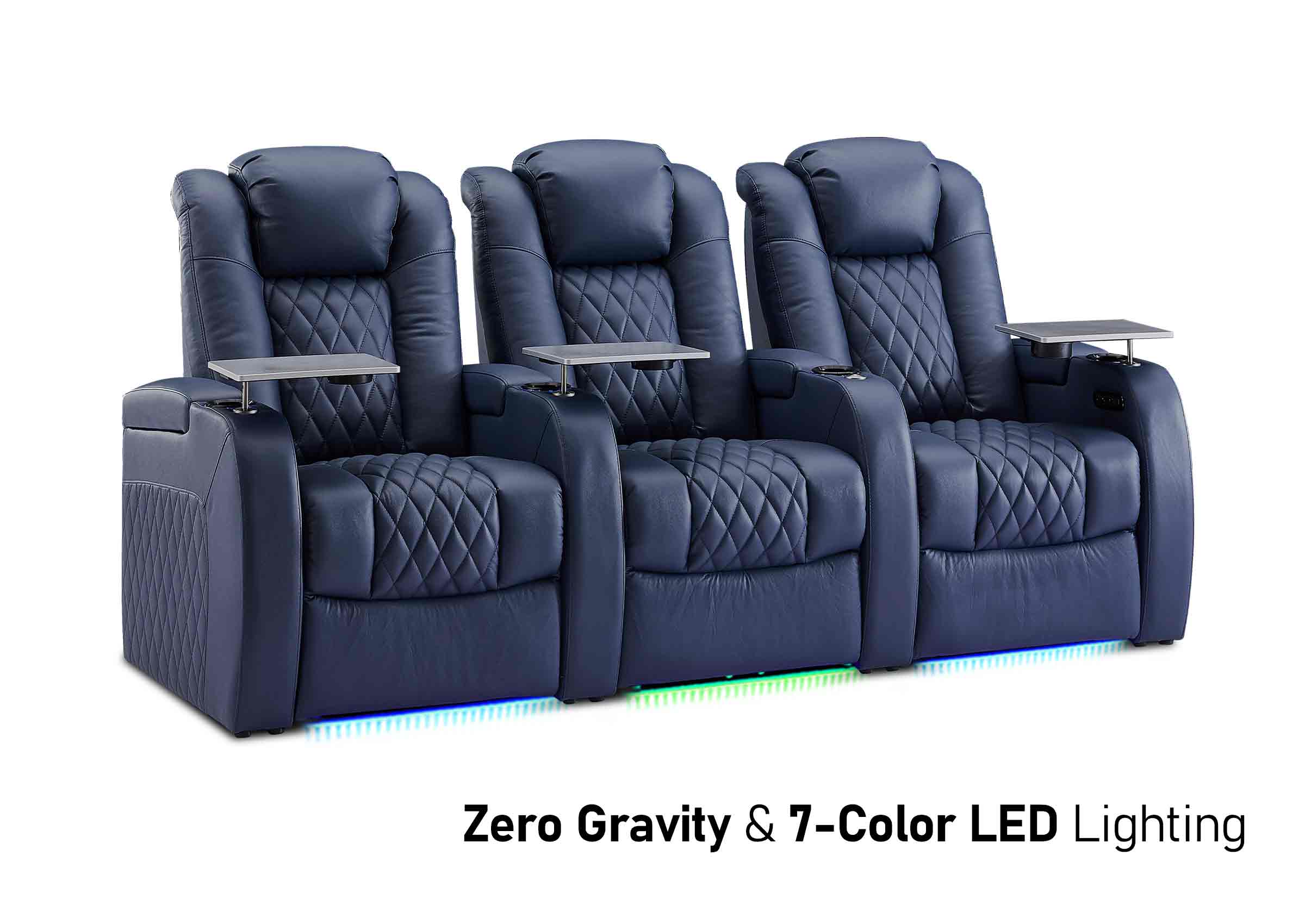
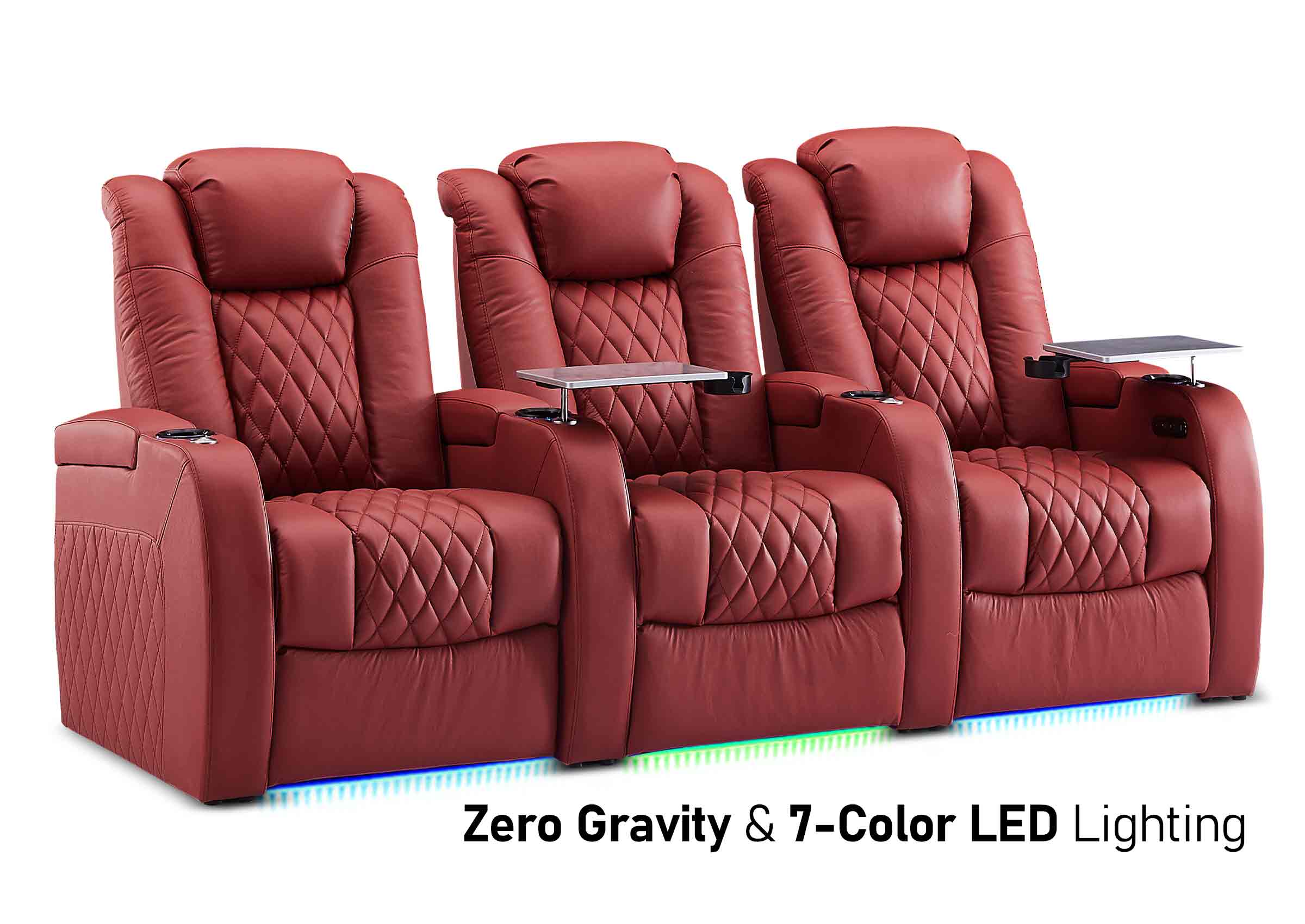
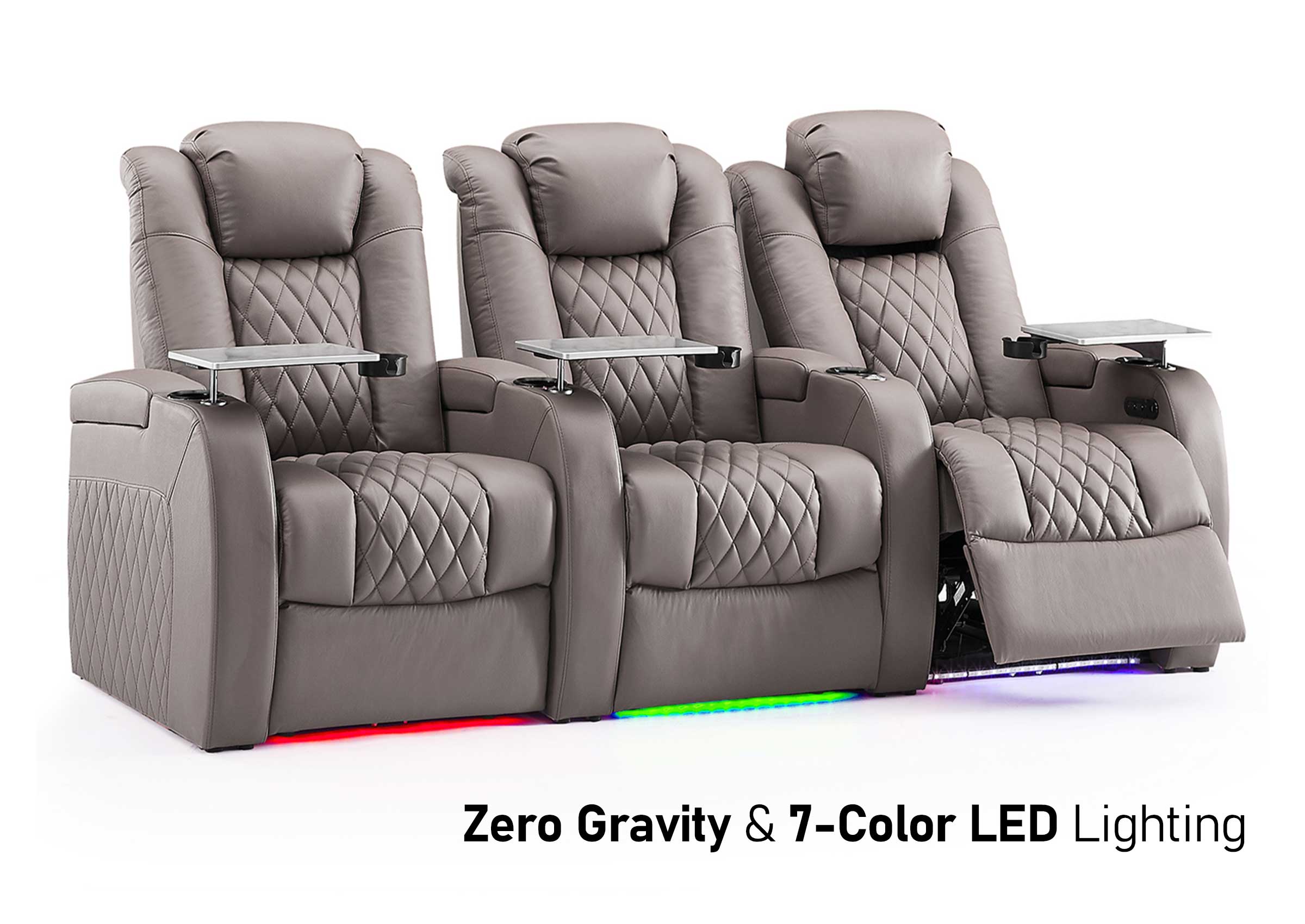
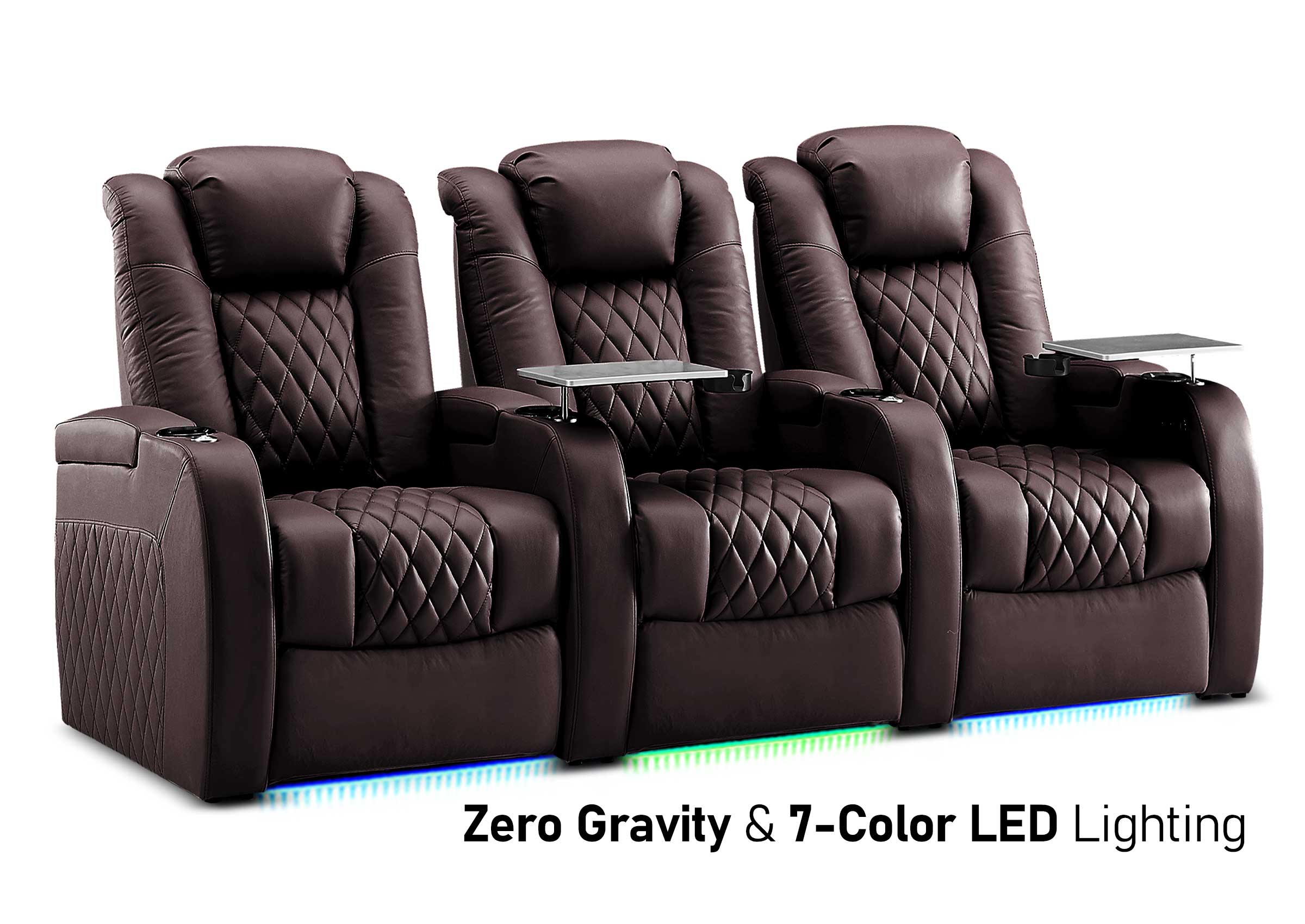
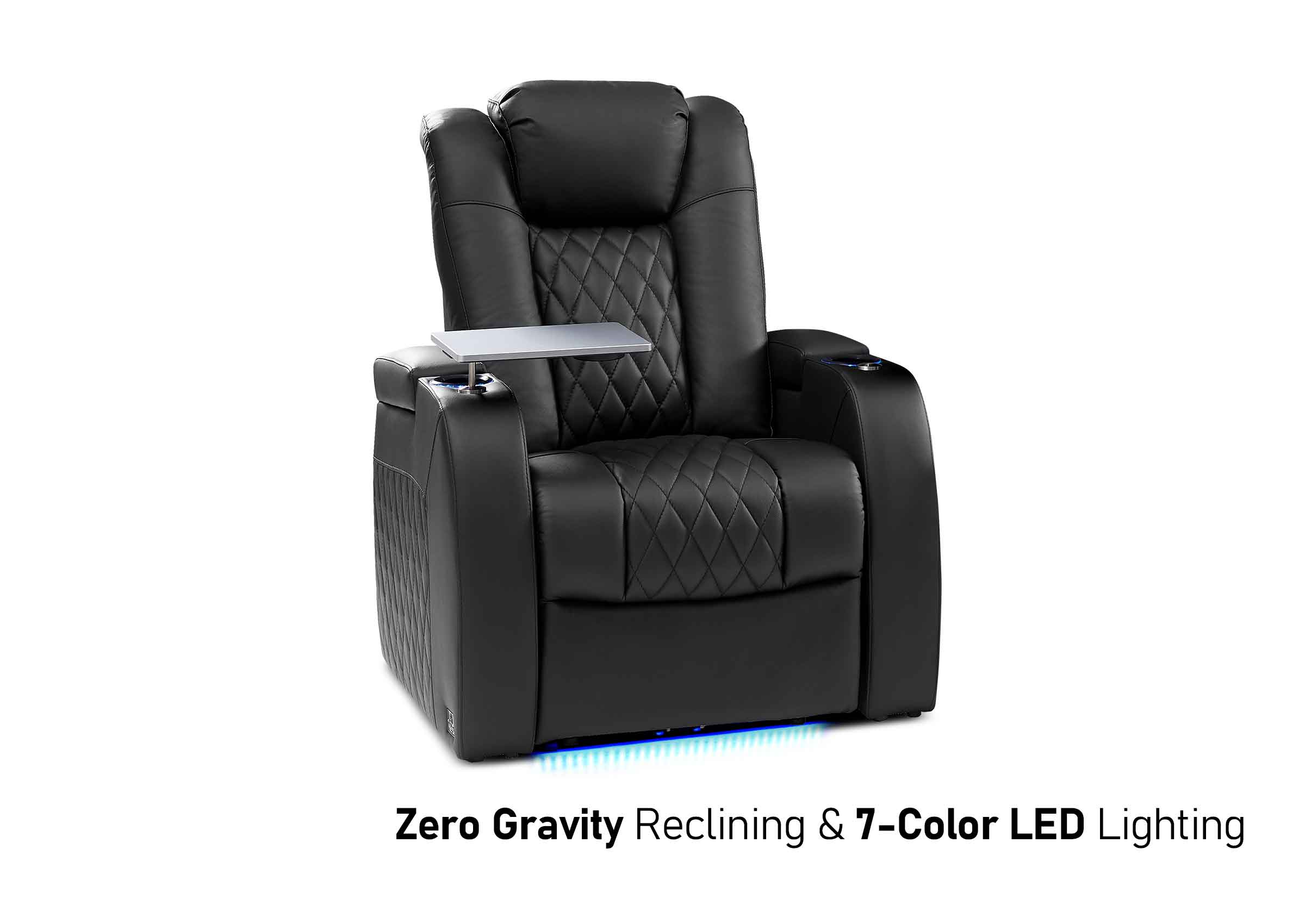
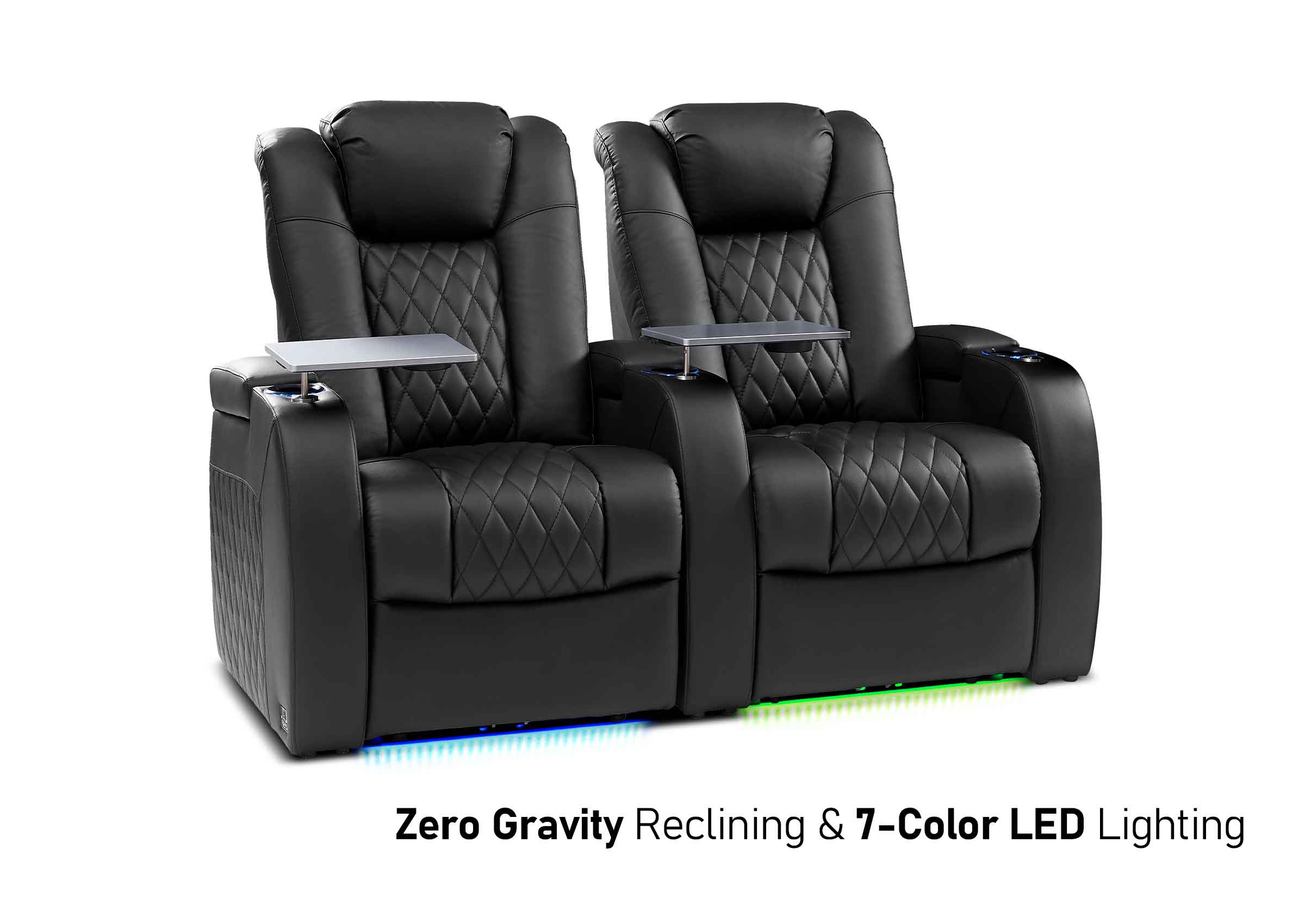
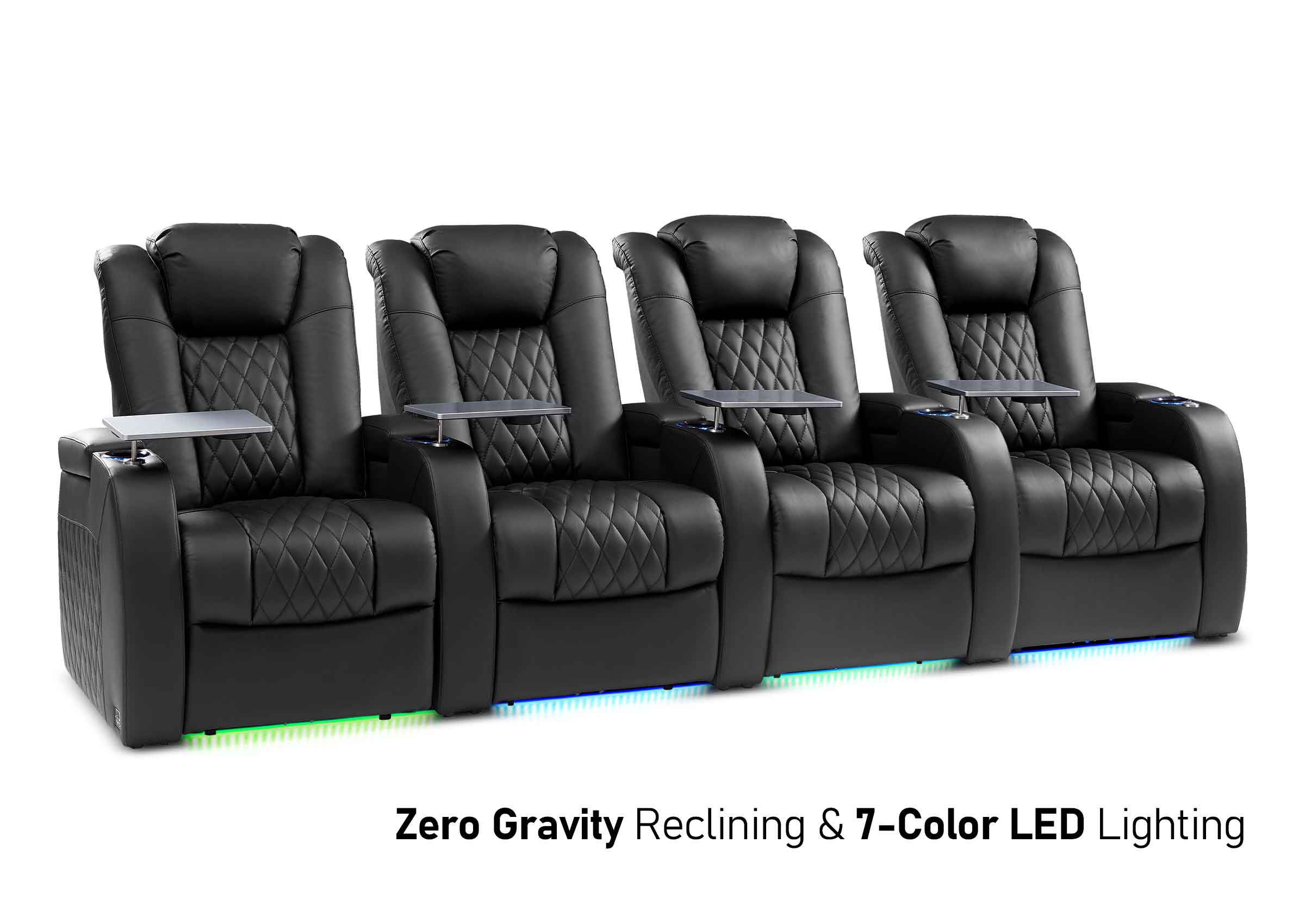
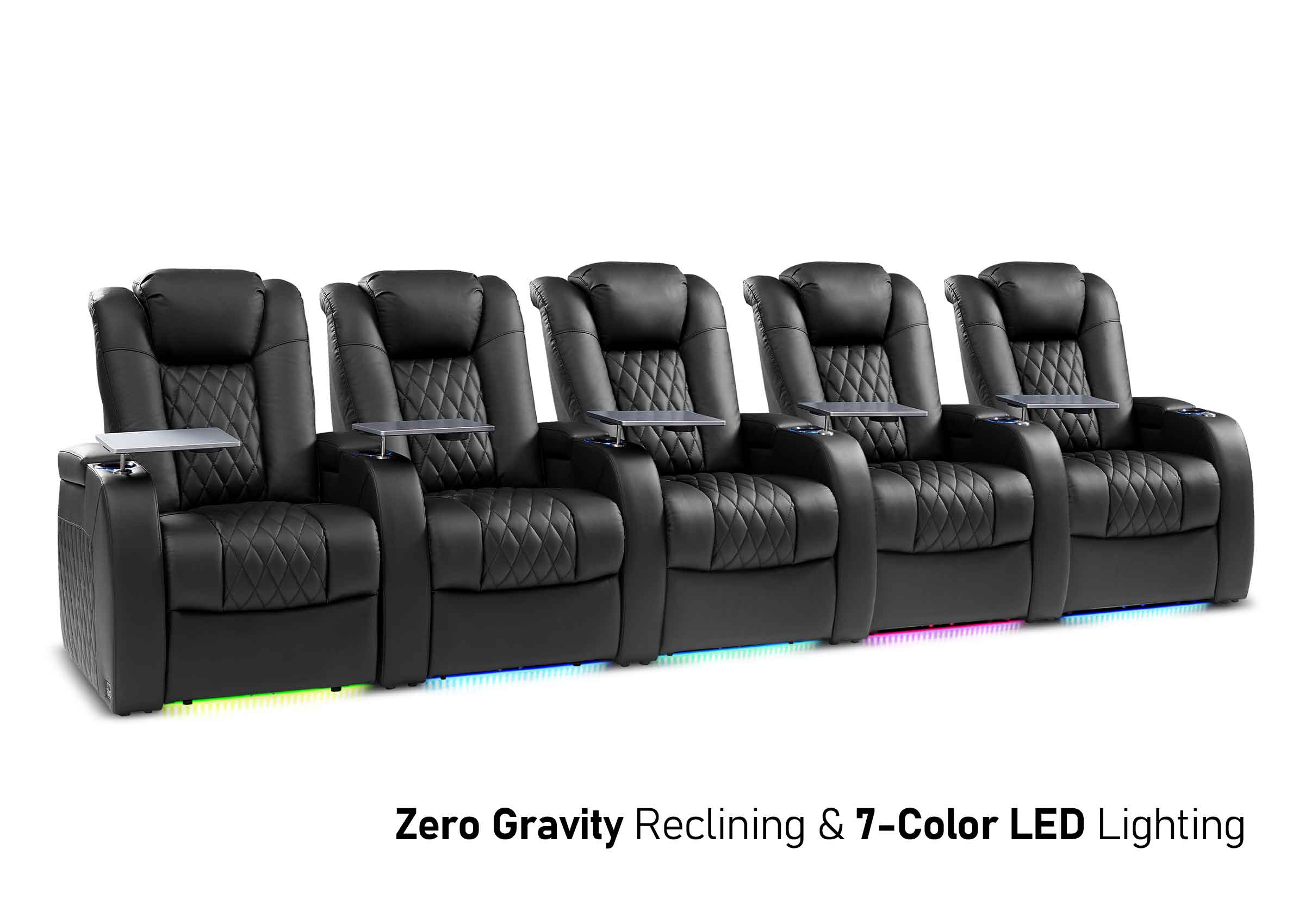
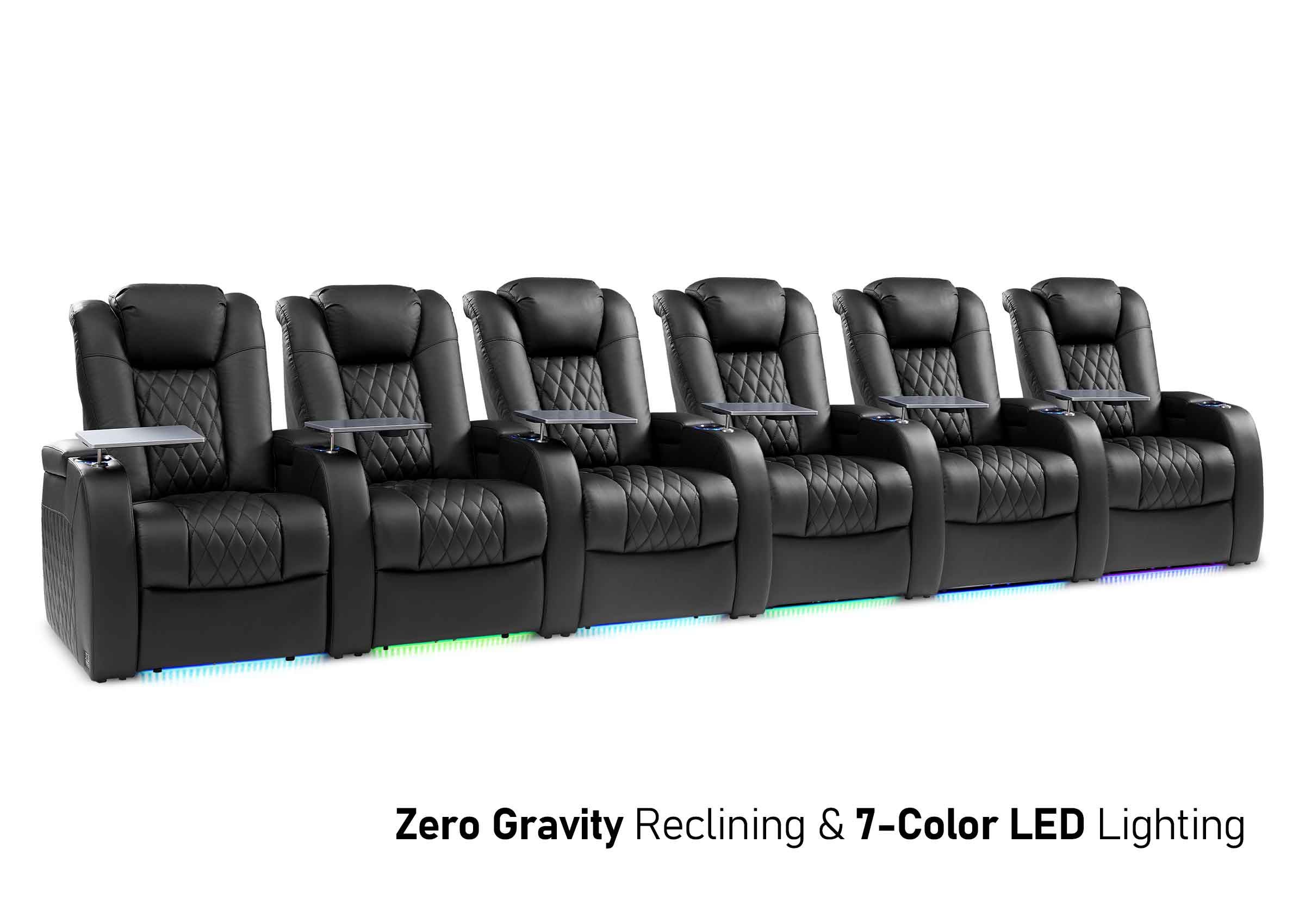
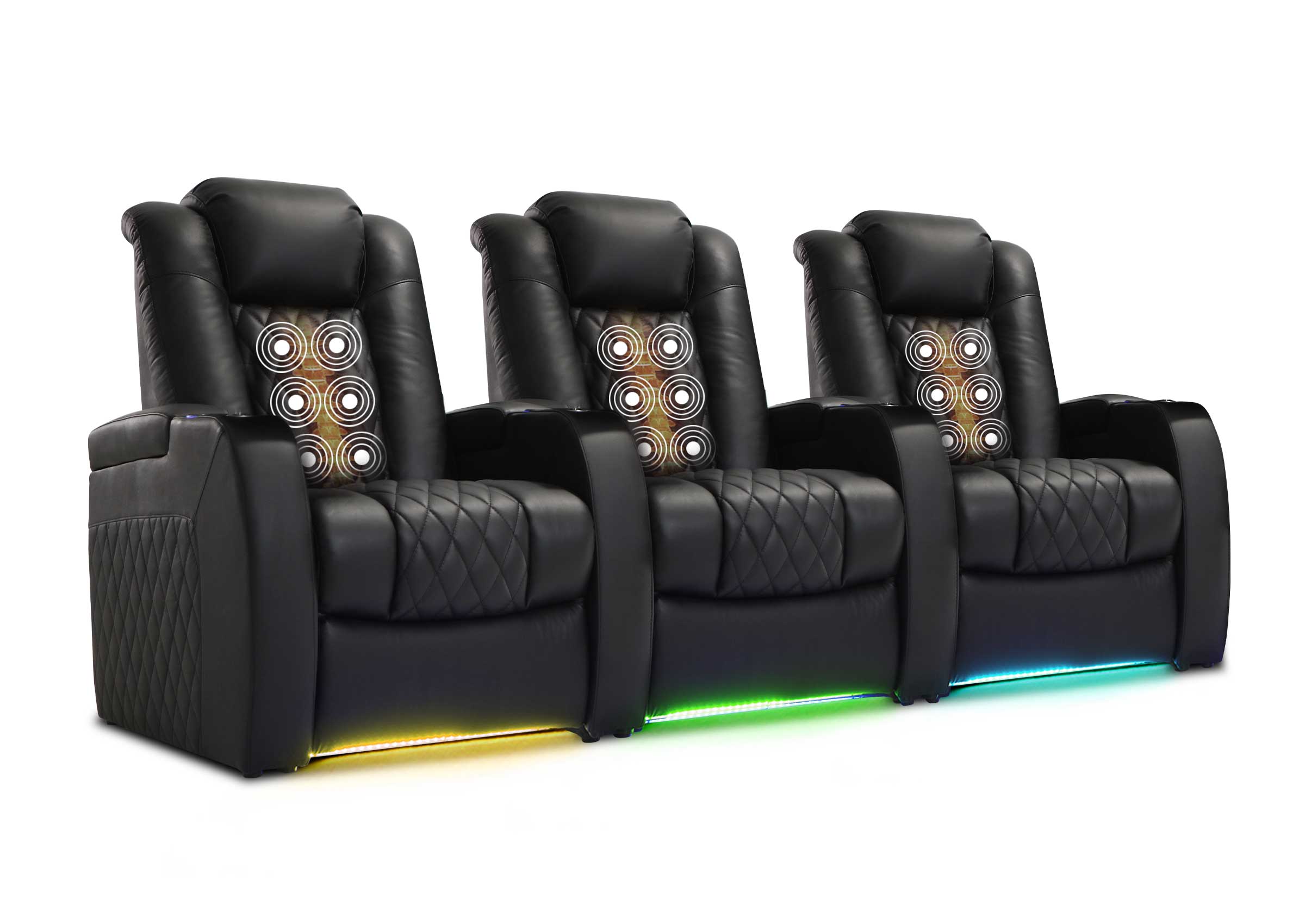
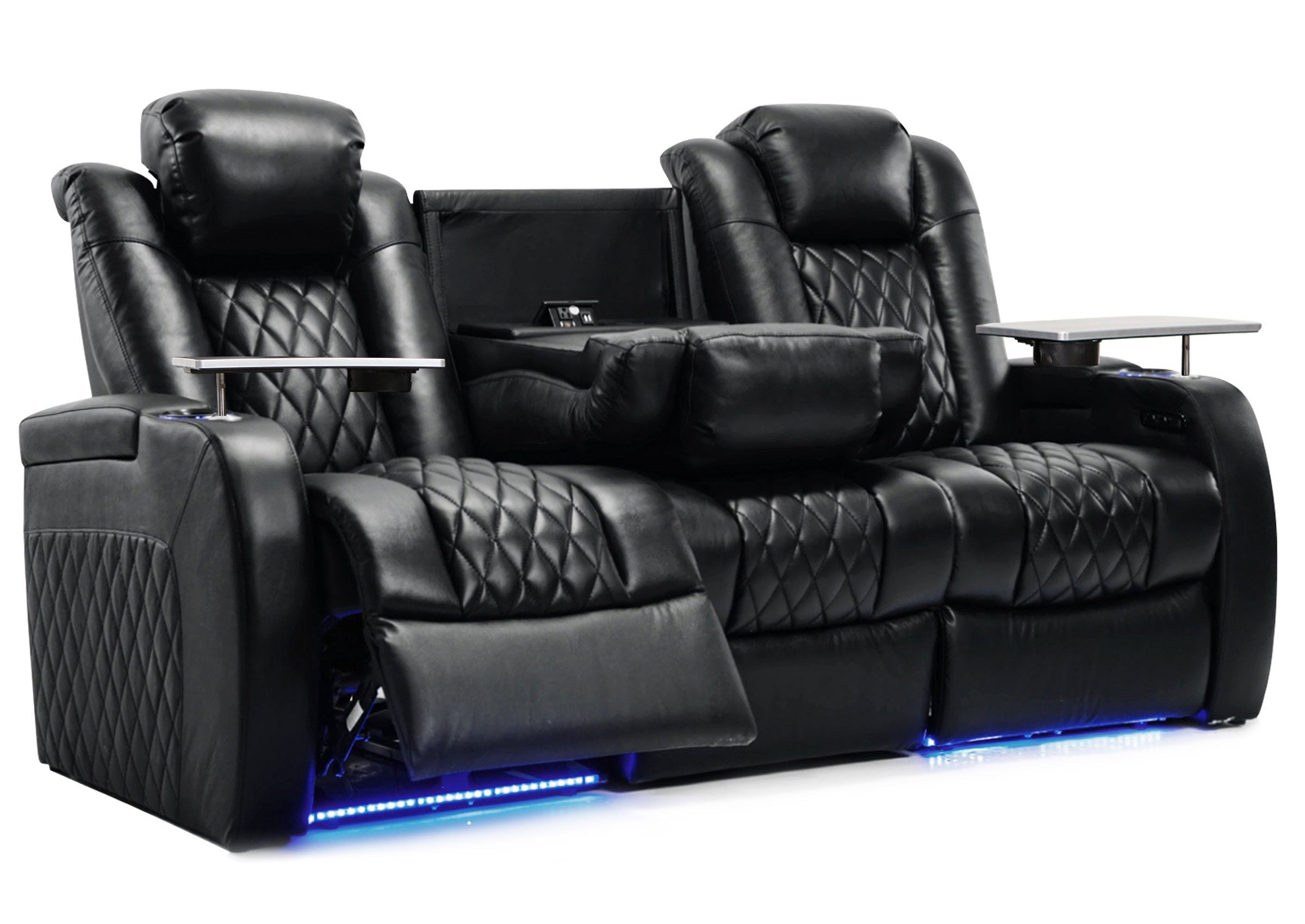
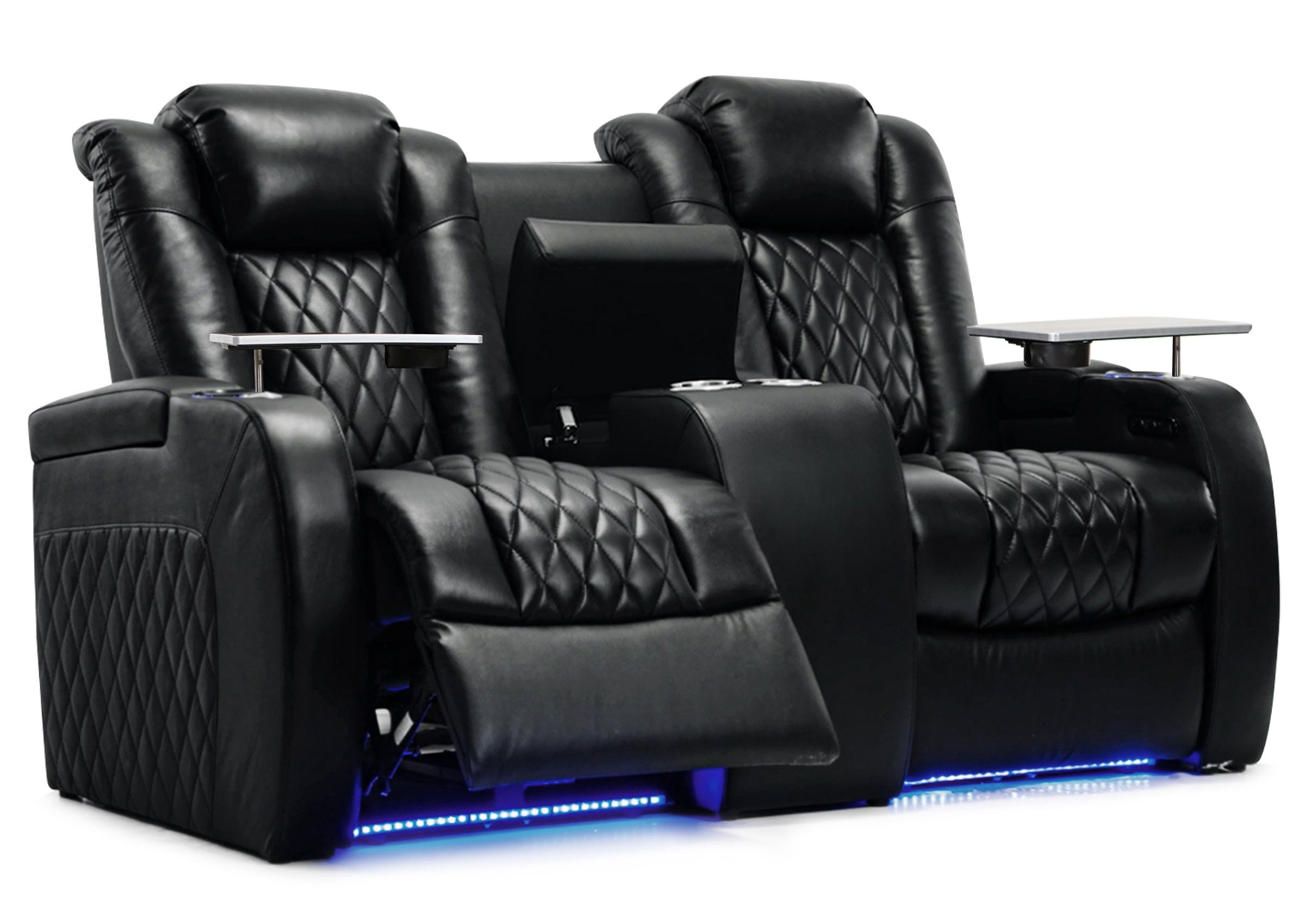
Check the seat once in daylight and once with your usual evening lights. Close the blind that reflects in the screen or move the lamp off to the side. A recliner can change both your eye position and the path into the room. If that’s where you play, try your normal recline position with the coffee table in place and check that someone can still walk past.
To compare a different seat or screen size, start with the TV viewing distance calculator and confirm that the map and subtitles are easy to read from that spot.

Give the Console Room to Breathe and Keep Cords Out of the Way
Put the console on a stable shelf with the vents clear and room for warm air to escape. Follow the clearance guidance for your exact model. A cabinet can look spacious with the doors open, so check it in the position you’ll use during play. Keep the HDMI connection reachable in case you need to test another port later. PlayStation’s console ventilation guidance
Put a controller charger within reach of the playing seat, or charge the controller at the cabinet between sessions. Route chair and charging cords away from footrests and walking paths. If you need to use a charging cable while playing, move the charger to the same side of the walkway as the chair.
LIVING ROOM GAMING
Make the Setup Fit Your Room
Check the space your seat needs when it reclines, or see how to plan the room if you want a more permanent gaming setup.
Choose the Audio Setup That Fits Your Living Room
Start with the TV speakers and a quiet conversation in the game. From the couch, check whether you can understand the voices without turning the volume up and down between quieter and louder scenes. Open Pause Menu → Settings → Audio to review the volume and audio setup. When you move between speakers and a compatible headset, confirm the console’s output and listen again from the seat you’ll use.
If you have a soundbar or receiver and the console works best connected directly to the TV, use ARC or eARC to send audio back to the sound system when both devices support the connection. Use the labeled ports and check that the TV and sound system both support the audio format you select. For late-night play, try a compatible headset or a lower-volume speaker setup and keep captions on if they help you follow dialogue.
Run a Couch Test Before Changing More Settings
Use a few minutes of familiar gameplay to check a camera pan, a dark area, and a spoken line. Compare one change at a time so you know what helped.
- Controls feel slow. Confirm Game Mode on the active input and turn off extra picture processing for a comparison. If it happens only on Xbox cloud play, test the network separately.
- Text is hard to read. Compare the center seat and your usual spot. If both are difficult, try the game’s UI scaling or subtitle settings before moving furniture.
- Video flashes or goes black. Test the console on the TV directly with a known-good cable and a supported output mode. If that works, reconnect the sound system or switch and check which feature stops working.
- Dialogue is clear at the TV but unclear at the couch. Compare the TV speakers and headset at the same comfortable listening level. If you’re using a sound system, check that the console is sending sound to the right output.
GTA 6 Living Room Setup FAQ
Can I play GTA 6 on a 1080p TV?
Yes. Use a compatible HDMI TV and select 1080p on the console if it needs a manual setting. On a smaller screen, moving a chair closer or increasing the UI scale may make the text easier to read. PlayStation’s supported resolutions · Xbox display capabilities
Does GTA 6 need a 120 Hz TV?
No. Rockstar announced a target of 30 frames per second for the launch version. Your TV’s refresh rate describes how often the panel can refresh. The game and console determine the frames it delivers. Use a stable display mode your current connection supports. Rockstar’s launch performance details
Do I need a PS5 Pro?
No. GTA 6 runs on the standard PS5 as well as PS5 Pro. Rockstar describes improved clarity and ray-traced shadows on PS5 Pro. You can still adjust glare, readability, and audio on the PS5 you already have. Rockstar’s PS5 and PS5 Pro details
Does the boxed launch edition need a disc drive?
Rockstar says the launch boxed edition includes a download code. Check the platform and region information on the package, redeem it on your account, and plan for the download before you want to play. Rockstar’s boxed-edition details
Can I use a living room projector for GTA 6?
Yes, if the projector accepts the console’s HDMI output and its response feels comfortable to you. Try its game or low-latency mode if it has one. Close the curtains, read the map from your seat, and walk the usual route past the screen to see whether anyone crosses the beam.
Make the First Change Your Room Actually Needs
If prompts are hard to read, start with the seat or the game’s UI. If the connection drops, start with the HDMI path. If sound is the problem, check dialogue from the couch before changing formats. If you decide to move or replace a seat, measure the usable width, the distance from your eyes to the screen, and the space behind and in front when the footrest is open. Use those measurements to compare the new setup with the one you just tested.
If you’re comparing a new seat, send those measurements, the seat model, and any tight spots in the walkway to Weilianda Support or email leon@weiliandahome.com.