









































HDR gives movies more room to show bright highlights, dark tones, and colors at different light levels. A streetlamp can stand out in a night scene without making the whole street look like daytime. HDR changes the range of light a picture can use. It doesn’t add pixels or make every scene brighter.
What HDR Changes in a Movie
HDR means high dynamic range. Dynamic range describes the span between dark and bright parts of a picture. Compared with SDR, or standard dynamic range, an HDR version can carry a wider range of light levels. A movie can use that room for reflections, sparks, sunlight, or the glow of a lamp. The ITU’s HDR television recommendation also specifies a wide color gamut. What you see depends on how the film was finished and what your screen can show.
A night scene can still look dark in HDR. A filmmaker may keep most of the frame dim so a few bright details catch your eye. An HDR label tells you about the format; it doesn’t tell you how much of the available range a particular scene uses.
Look at the Lamp, the Window, and the Person
Imagine a person standing in a dim kitchen. A pendant lights part of their face, and the wet street outside picks up a bright reflection. In an HDR version of that shot, the reflection can stand out from the rest of the window while the face and the unlit wall stay at quieter levels. In a well-made SDR version, the same shot can still look good. The colorist has a narrower range to work with and may bring the brightest details closer together.
To see what changed, look at the shape of the reflection, the transition from the lit cheek to shadow, and whether you can still make out the wall. A brighter kitchen overall does not tell you which version has the wider range. If the SDR and HDR copies come from different releases, their color, framing, or brightness choices may differ for more reasons than the format.

Separate HDR From 4K and Picture Shape
4K tells you about the pixel grid. HDR tells you about how the signal represents light and color. A 4K SDR movie can have fine texture in a coat without the wider range of an HDR version. An HDR version of a movie doesn’t suddenly gain detail the source never captured. Streaming services may put the two labels together because the same release offers both.
The shape of the picture is another decision. A wide shot can have black bars in either format on the same television. Those bars are about how a picture fits the screen; they aren’t a way to tell whether HDR is on.
What the HDR Format Names Tell You
The names tell you which kind of signal to look for in the title, playback device, and display specs. Metadata is extra information that can help the display decide how to present that signal. You need support for the format you want to watch; the label alone won’t tell you which version will look best on your screen.
| Format | What it means when you watch |
|---|---|
| HDR10 | When used, its static metadata describes the program as a whole. Your TV still decides how to fit the signal to its own display. |
| HDR10+ | Adds dynamic metadata that can vary by scene or frame. Check the title, player or app, and display for HDR10+ support. |
| Dolby Vision | Another HDR format that can carry scene-by-scene or frame-by-frame instructions. It needs its own compatibility check. |
| HLG | A different HDR signal defined in the ITU recommendation. Look for HLG support if a channel or live feed uses it. |
HDR10+ Technologies’ format overview and Dolby’s explanation of shot and frame metadata explain the metadata differences. If one device doesn’t support a format, check whether that edition and playback path offer another compatible HDR format or SDR. Don’t assume every title has the same fallback.
Check the Title, the Player, and the TV Separately
Start with the title in the app you’ll use or the edition of the disc you own. Netflix’s video quality guide explains that the labels you see can depend on what your device is able to play. A title page is useful there; it isn’t a reading from the display during the movie.
With a built-in TV app, look for playback information while the movie is running. With an external player, check the player’s video output and the TV’s input information as well. Apple TV’s Match Dynamic Range setting is one example of letting the output follow the content. A player that converts SDR to a fixed HDR output can trigger the HDR banner even with an SDR title. A TV’s HDR banner tells you what signal reached the screen. It doesn’t tell you how the movie was made or how well your TV shows it.
If an external player runs through a receiver or switch, include it in the check. The input, settings, and devices in between must carry the format you want. Apple’s HDR setup guide gives examples of these requirements for Apple TV 4K. If it’s easy to do, try the player directly into a compatible TV input. If HDR then works, recheck the intermediate device or input before replacing the display.

Why HDR Can Look Dark at Home
Some movies are graded to have dark scenes. Other times the display is trying to fit the film’s range into a screen that can’t show the brightest parts as mastered. That adjustment is called tone mapping. Different displays or HDR picture modes can preserve or compress bright details differently; the same title won’t necessarily look the same on both TVs.
Room light makes a difference too. A lamp reflected in a dark part of the screen can make the details underneath it hard to see. Turn the lamp off or close the shade for one viewing and check again from your usual seat. If that helps, you’ve learned something about the room without changing the TV. If most HDR titles are hard to follow even at night, check the set’s HDR picture mode while a title plays. Netflix’s dark-picture guidance treats device settings and app options as things to check, depending on the setup.
Try One Scene Before You Change the Setup
- Pick a familiar scene with a bright detail, a face, and a dark background. Play it and check the format the TV reports if an input or playback banner is available.
- Keep the same seat and scene. Remove one reflection and replay it. If you want to try a different picture setting, note the original setting and make that a separate pass. Notice whether you can see the face more easily without losing the bright detail you wanted.
- If the service or disc offers an SDR version, try it from the same seat. Confirm the output changed if you’re comparing the two formats. If the two versions are different releases or picture modes, treat it as a choice between two ways to watch, rather than a controlled format test.
Keep the settings you can live with in the room you actually use. If you prefer the SDR release in daylight and the HDR release after dark, that’s a useful outcome. You don’t need to make every movie call up the same badge.
After you replay the scene
Check What’s Affecting the Picture
If reflections are hiding dark details, start with the room lighting. If fine details still look soft, check the resolution your source and TV are actually using.
Frequently Asked Questions
Does every 4K movie have HDR?
No. Check for a separate HDR format label on the title or disc. A player showing a 4K output does not establish that the source was HDR or even that it started at 4K.
Why does my TV show HDR for everything?
The player may be sending a fixed HDR output even when a title is SDR. If the player supports matching the content’s dynamic range, try that setting and check whether the TV reports different formats on two titles you’ve verified.
Is Dolby Vision always better than HDR10?
No. The title, display and way it maps the signal still affect the picture. Choose a compatible format and judge how the scene looks on your equipment instead of treating the logo as a picture ranking.
Will HDR remove the black bars?
No. Black bars are normally a result of the shape of the movie and the screen, or they may already be in the video. Turning HDR on does not reshape the movie.
Can a projector show HDR?
Yes, if the projector and playback path support the format. How it looks depends on the setup, including the projector’s handling of the signal, the screen and light in the room. A projector’s HDR input spec is a compatibility check, not proof of what the picture will look like from your seat.
Is Dolby Vision the same thing as Dolby Atmos?
No. Dolby Vision is a picture format. Dolby Atmos concerns audio. A movie or device can support one without supporting the other.
Check the Picture From the Seat You Actually Use
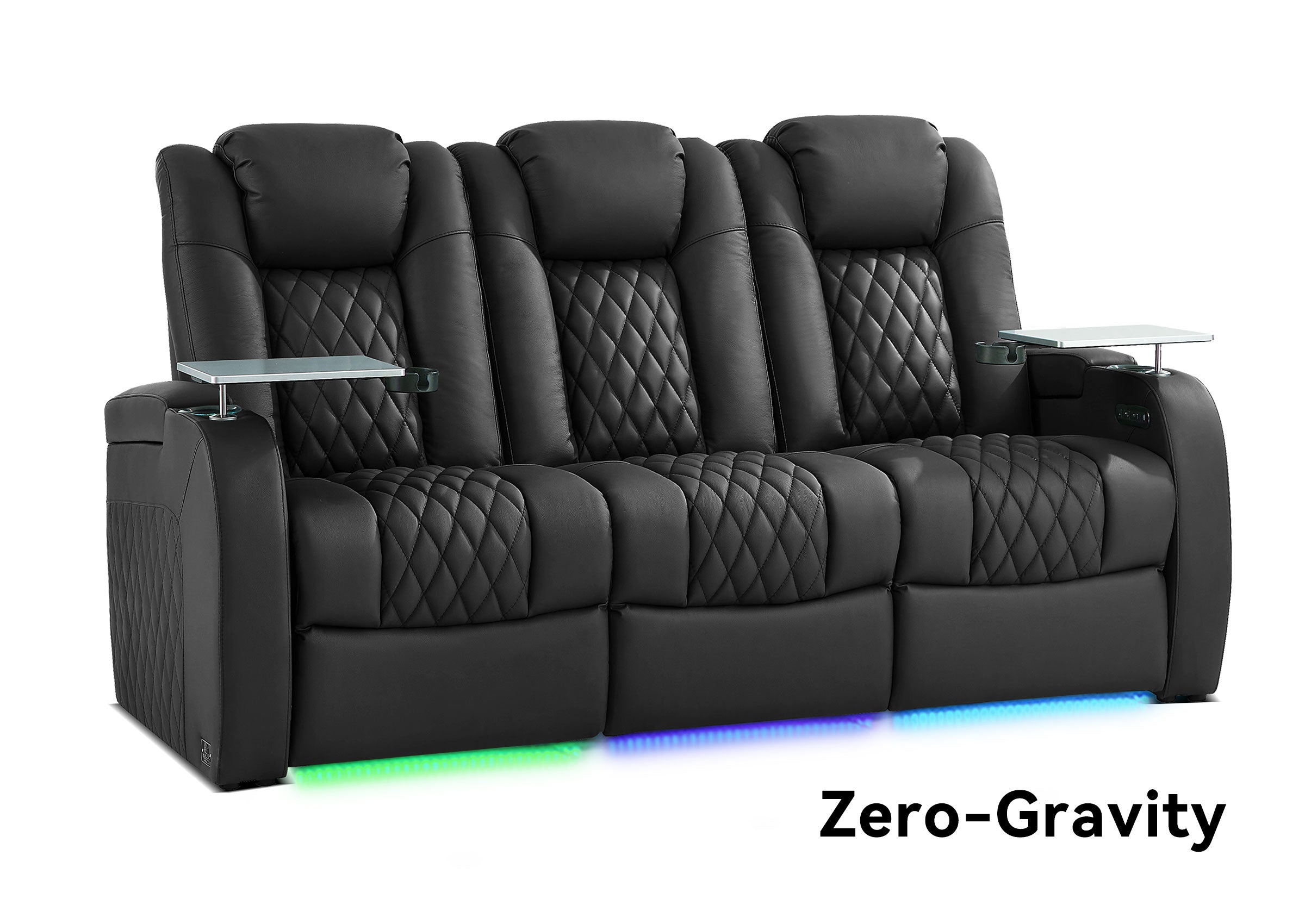
Before you change hardware, replay the scene from your regular spot, then the seat most likely to catch a reflection. Write down the title, the signal the TV reports, and what you changed. If you’re also planning new seating, share your screen position, usual seats, and room measurements with Weilianda Support or email leon@weiliandahome.com. Use your TV or projector maker’s instructions for model-specific picture settings.